Trackers, signup pages, feedback widgets — Cursor's agent builds the front end in minutes, then parks the data in localStorage. Give it a real endpoint and the app is finished, not half-alive.
The most common Cursor build is also the most commonly abandoned: a beautiful little web app — habit tracker, waitlist, quiz, dashboard — where the agent, having no backend to target, saves state to localStorage or a JSON file. It works on your machine, on your browser profile, until the tab closes. Teammates can't use it. Nothing accumulates. There's no list of signups because there is nowhere for a signup to go.
A FormLM endpoint is the missing half: one URL that accepts the app's POSTs and keeps them. It's CORS-enabled, so a page running on localhost, a preview server, or any static host writes to it directly — no proxy, no backend of your own. And Cursor doesn't even need instructions: paste the endpoint with ?help into the chat and the agent reads the field list and wires the form up correctly on the first try.
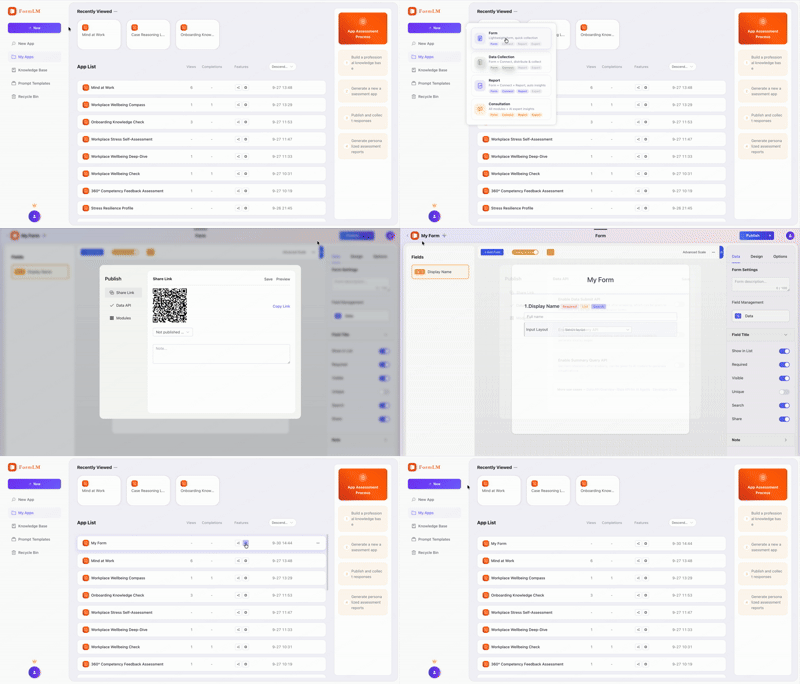
Put the endpoint in the prompt. Creating a form with the Data API enabled takes about a minute in FormLM. Then ask Cursor to build the front end against it:
"Build a waitlist page for me. Submit entries to
 https://formlm.me/api/v3/share/YOUR_TOKEN?help
 Read the docs first, wire the form to it, then
 show me the stored records via the query endpoint."

# The agent reads the Markdown schema, builds the form,
# and the app persists from the very first submission.
Register formlm-cli as an MCP server and Cursor itself can create the form, define its fields, publish the endpoint, and query results — the whole loop inside the editor. Install the CLI first (npm install -g @formlm/cli), then add the config. Project-level is the usual choice — it's version-controlled, so your whole team gets it on checkout:
{
  "mcpServers": {
    "formlm": {
      "command": "formlm-cli",
      "args": ["mcp"],
      "env": {
        "PATH": "/opt/homebrew/bin:/usr/local/bin:/usr/bin:/bin"
      }
    }
  }
}
The env.PATH line prevents the classic macOS failure where Cursor launches the server without your terminal's PATH and gets command not found. After editing, fully restart Cursor. Authentication happens once — run formlm-cli auth login --token <your-token> in a terminal (Access Token from formlm.me → Account Settings; verification-code and Google accounts have no password), or just answer the login prompt inside your first MCP chat session. More depth in the developer zone.
$ curl -X POST https://formlm.me/api/v3/share/YOUR_TOKEN \
  -H "Content-Type: application/json" \
  -d '{
    "data": {
      "email": "ada@example.com",
      "referral": "producthunt",
      "interest": "assessment-reports"
    },
    "meta": {"source": "waitlist-page"}
  }'

# Read — ask Cursor to build an admin view over this
$ curl https://formlm.me/api/v3/share/YOUR_TOKEN/query?page=1&size=50
CORS covers both directions, so the same page can render the stored records — or you keep the token write-only in the front end and read through the admin view in FormLM, CSV export included. Auto-created fields mean the waitlist can grow a plan column next week without a migration.
Project-level (.cursor/mcp.json in the repo root) is the usual choice: it is version-controlled, so every teammate's Cursor gets the FormLM server automatically on checkout. Global (~/.cursor/mcp.json) makes it available in all projects — pick that if FormLM is your personal default backend.
Yes — that's the point. The endpoint is CORS-enabled on reads and writes, so any HTML page Cursor writes, running on localhost, a static host, or even file://, can fetch() data in and out. The MCP server is for Cursor itself; the plain URL is for the apps Cursor builds.
Append ?help to the endpoint URL and it returns a Markdown document with the full field list, request format, and copy-paste examples. Paste that URL into Cursor's chat and the agent wires the form fields to the API correctly on the first try.
Not in the JSON. Without a token, the first MCP session prompts for login inside the chat — paste your Access Token (formlm.me → Account Settings → Access Token → Copy). To skip that, run formlm-cli auth login --token <your-token> once in a terminal; the stored token is picked up automatically afterwards. Verification-code and Google accounts have no password — use the token, or run formlm-cli auth login and choose the email verification-code option (fully in the terminal).
Free endpoint, CORS for the front end, ?help docs the agent reads itself.
Create your free endpoint →